How to Keep Your Cursor Visible During Screen Share (And Why It Matters)
Make your cursor easy to follow during screen sharing on macOS with simple visibility tips and Presentify.
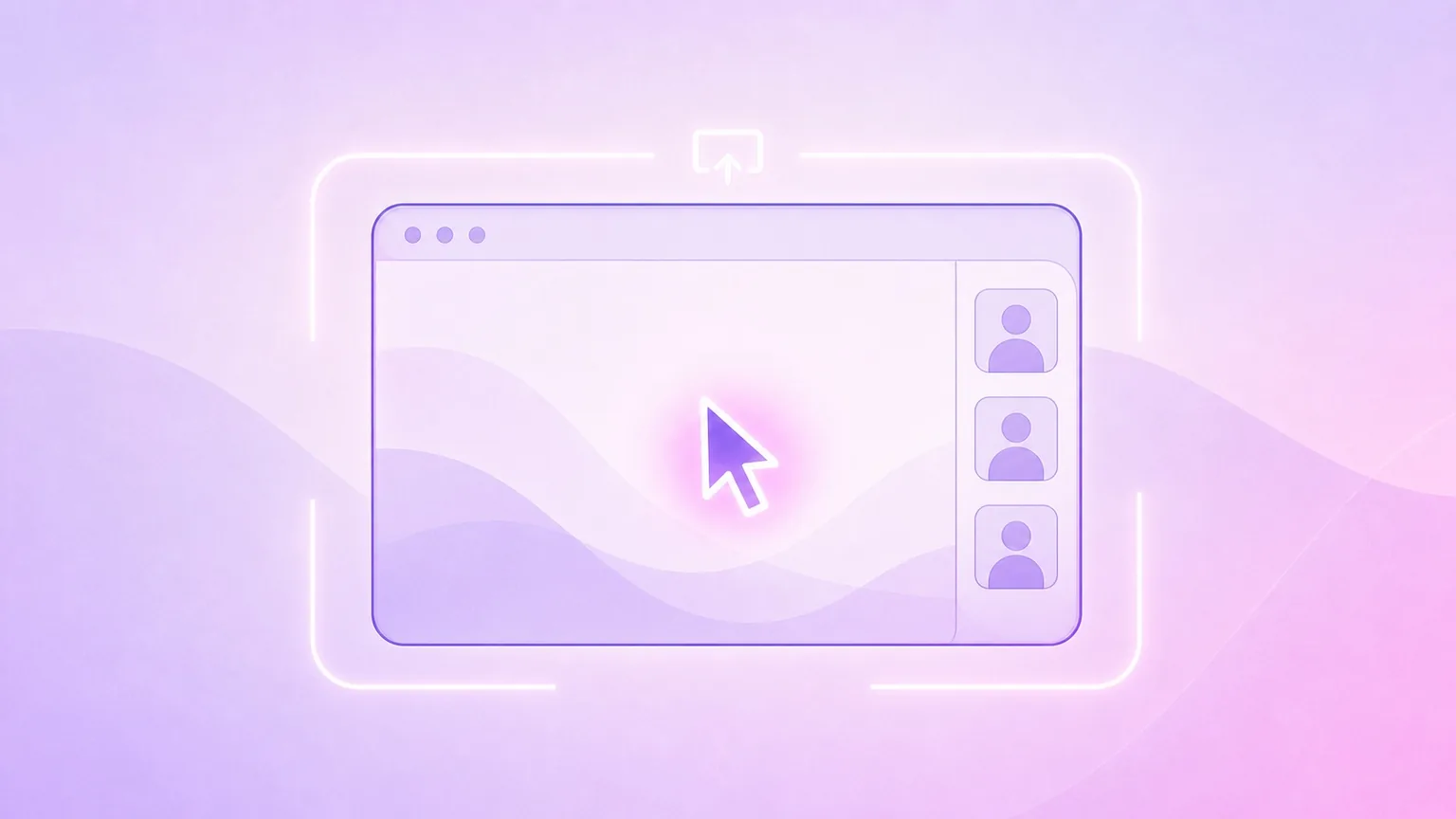
When you share your screen, your cursor becomes your laser pointer. If viewers cannot see it clearly, they get lost fast. This is especially true in dense UIs, design tools, or code editors.
Presentify solves this by adding a customizable halo around your cursor, plus optional click animations. Here is how to keep your cursor visible and your demos easy to follow.
Why cursor visibility matters
- It anchors attention on the exact UI element you are discussing
- It reduces verbal repetition like "over here" or "this one"
- It helps viewers understand intent before you click
Turn on cursor highlighting
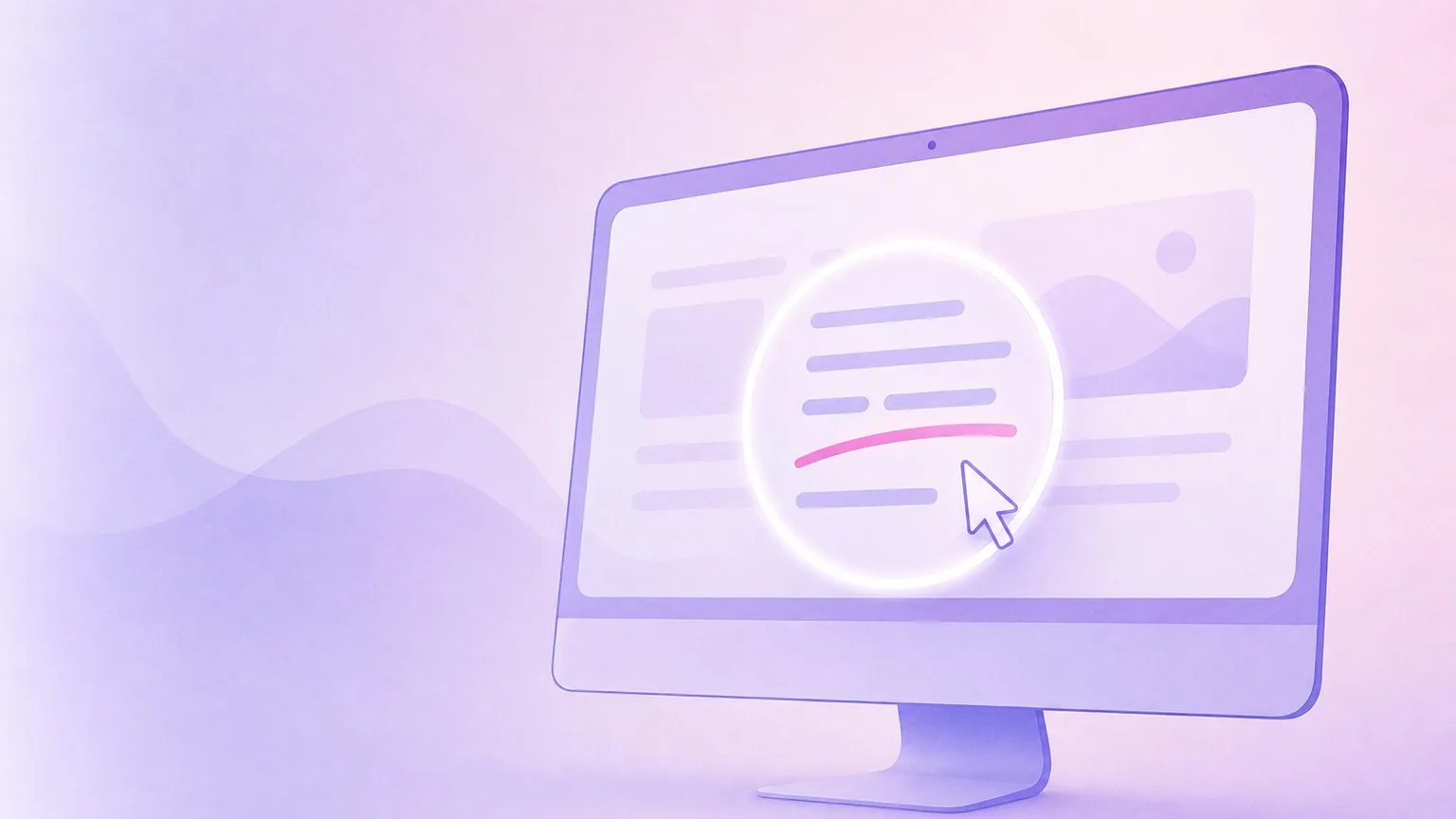
Highlighting adds a visible ring around your cursor so it stands out on any background. The Cursor Highlight guide covers every option in detail.
- Toggle Highlight Cursor with
⌃ + S - Choose a bright, high-contrast color
- Increase size if you present on a projector or large screen
Enable click animations
Click animations tell your audience when an action is happening.
- Use distinct animations for left and right click
- Keep the animation subtle so it does not distract
Use shapes that match your content
Presentify supports multiple shapes like rings and squircles. A simple ring is the most legible in most apps, but a squircle can look cleaner on video.
Hide the highlight when idle
If the highlight feels noisy when you pause, enable the option to hide the cursor highlight when your mouse is inactive. This keeps focus on your content.
Combine with spotlight or zoom when needed
For complex screens, add spotlighting or zoom:
- Spotlight dims the rest of the display so the focus area is obvious
- Zoom magnifies tiny UI details or text
These features are especially helpful during product walkthroughs or live tutorials.
Share your full screen
Cursor tools are most reliable when you share the full screen, not a single window. If privacy is a concern, use a second display for presenter notes.
Quick setup checklist
- Turn on Highlight Cursor (
⌃ + S) - Pick a bold color and larger size
- Enable click animations
- Test in your video app before the meeting
A visible cursor is a small change that makes a huge difference. It helps your audience follow every action and keeps your presentation polished.