Spotlight in Presentify: Put a Light Where Your Cursor Is and Dim the Rest
Learn how to use Presentify's Spotlight feature to dim distractions, guide attention, keep audiences focused, and present more clearly on Mac.
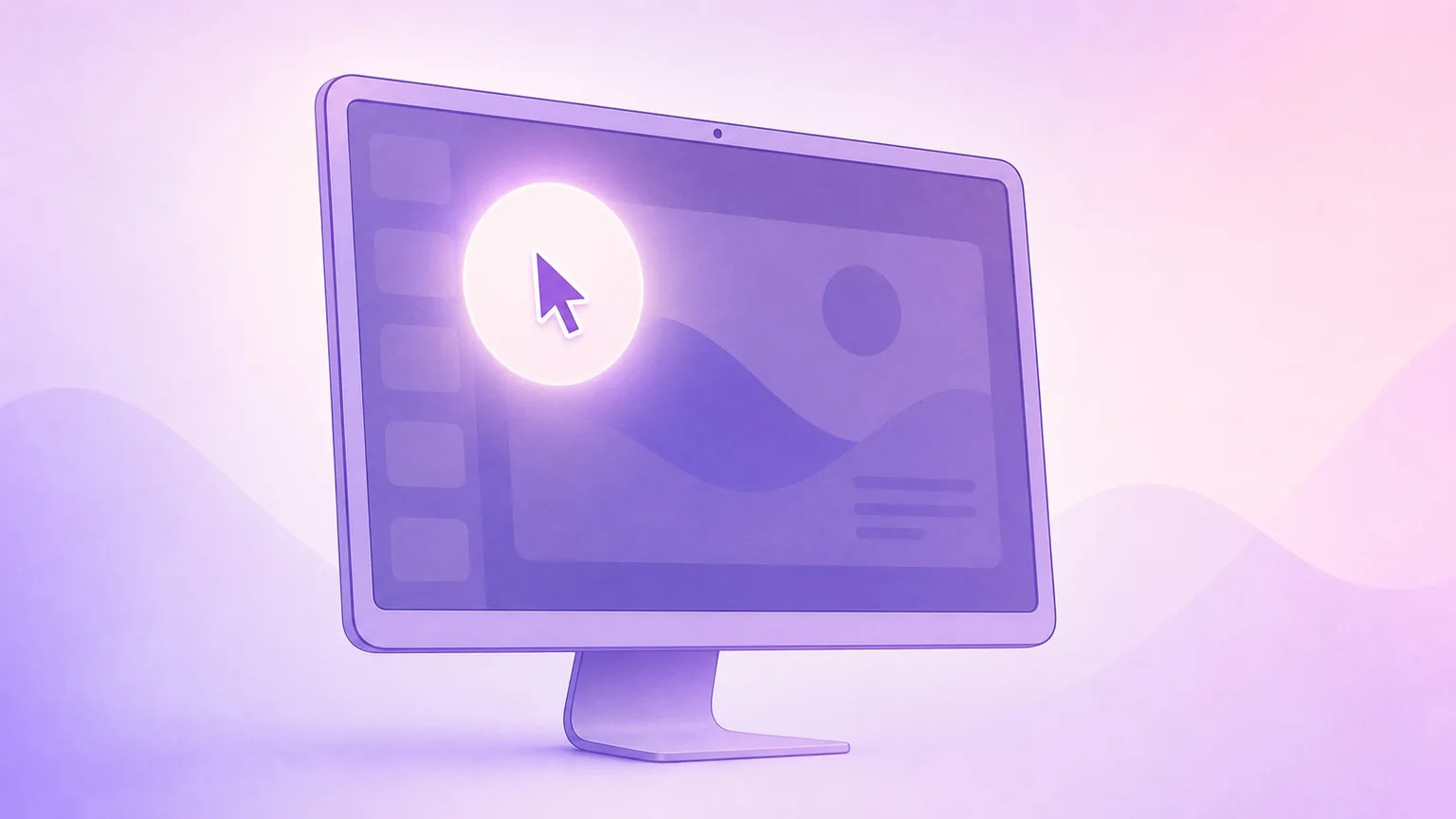
Presentify includes a Spotlight feature that keeps attention exactly where you need it. It dims the rest of your screen and leaves a bright focus area around the cursor, so viewers can follow your explanation without scanning a busy desktop, dashboard, slide, or code editor.
This is not macOS Spotlight search. It is a visual spotlight for presentations, screen shares, tutorials, live demos, product walkthroughs, and support calls on Mac.
What Spotlight does
Spotlight darkens everything except the area around your cursor. As you move the cursor, the spotlight follows, making it clear which button, menu item, chart, line of code, or design detail you are talking about.
It is especially helpful when your screen has a lot going on. Instead of asking people to "look near the top left" or "focus on this small control," you can move the spotlight to the exact area and keep speaking.
Start Spotlight with a shortcut
The fastest way to start Spotlight is with the default global shortcut: ⌃ + L (Control + L). Press it once to turn Spotlight on, move your cursor to guide attention, then press it again to turn Spotlight off.
Toggle Spotlight from anywhere on your Mac with ⌃ + L.
This shortcut is useful during live presentations because you do not have to open a window, leave your current app, or break the rhythm of your explanation.
Start Spotlight from the menu bar
You can also start Spotlight from the Presentify menu bar icon. This is helpful when you are learning the app, changing modes between sessions, or showing someone how your setup works.
Open the Presentify menu bar item and start Spotlight without memorizing a shortcut.
Presentify is a menu bar app, so it stays out of the way until you need it. Once Spotlight is running, you can keep working in Keynote, PowerPoint, Safari, VS Code, Figma, Zoom, Google Meet, or any other app.
Adjust the spotlight size
Different moments need different focus areas. Use a smaller spotlight for precise UI controls, toolbar buttons, menu items, or individual words. Use a larger spotlight for a chart, paragraph, slide section, code block, or app panel.
Resize the spotlight so the focus area matches the detail you are explaining.
While Spotlight is active, the default cursor-size shortcuts are:
⌃ + -to decrease the Spotlight size⌃ + =to increase the Spotlight size
You can also change these key shortcuts from Settings... > Shortcuts > Cursor Shortcuts.
For visual settings, open Settings... > Cursor > Spotlight. From there, adjust the size, shape, and dimming behavior so Spotlight looks right for your screen, audience, and content.
Choose the spotlight shape
Spotlight supports different shapes, so you can match the focus area to what you are presenting. A circular spotlight works well for pointing and demos. A rectangular or squircle-style spotlight can feel better for UI panels, text blocks, spreadsheet cells, code snippets, and slide content.
Pick a Spotlight shape that fits the content you want people to see.
The goal is not to make the effect flashy. The best Spotlight setup is the one that makes the next thing you say easier to understand.
Customize shortcuts and settings
Presentify lets you adapt Spotlight to your workflow. Open Settings... > Shortcuts to change the Spotlight shortcut if ⌃ + L conflicts with another app or if you want to map it to a Stream Deck, presenter remote, macro pad, or keyboard shortcut you already use.
Customize Spotlight shortcuts so they fit naturally into your presenting flow.
You can also change other cursor key shortcuts from Settings... > Shortcuts > Cursor Shortcuts. And if, for any reason, you do not want to set a keyboard shortcut for an action, just click the cross icon next to the shortcut.
Why Spotlight improves presentations
Spotlight makes presentations easier to follow because it removes visual competition. The audience sees the part of the screen that matters now, not every tab, sidebar, toolbar, notification area, and background detail at once.
It helps you:
- Guide attention during live demos without pausing to explain where to look
- Make small interface details easier to notice on video calls and recordings
- Reduce distractions on busy slides, dashboards, code editors, and design files
- Create cleaner tutorials where every step has a clear visual target
- Keep your explanation moving while the focus follows your cursor
Useful Spotlight workflows
Use Spotlight when you are showing a new product feature, walking through a website, reviewing a design, teaching from a slide deck, explaining code, onboarding a teammate, or helping someone troubleshoot remotely.
A few practical examples:
- In a product demo, spotlight one button or setting before you click it.
- In a coding tutorial, spotlight the line or block you are discussing.
- In a design review, spotlight the component, spacing, or state you want feedback on.
- In a training session, spotlight the next step so learners do not get lost.
- In a support call, spotlight the exact menu path the other person should follow.
Best practices
Keep the spotlight large enough for viewers on smaller screens, especially if they are watching a recording later. Use a smaller size only when the detail is genuinely tiny and precise.
Turn Spotlight on only when you need to direct attention, then turn it off when the full screen should be visible again. For longer walkthroughs, pair Spotlight with Presentify's cursor highlight or annotation tools so you can move between focus, pointing, and drawing without changing apps.
Quick checklist
- Press
⌃ + Lto toggle Spotlight. - Use
⌃ + -and⌃ + =to adjust the size while presenting. - Choose a shape that matches your content.
- Customize shortcuts in Settings... > Shortcuts.
- Tune size, shape, and dimming in Settings... > Cursor > Spotlight.
Spotlight is a small feature that makes a big difference: it gives your audience a clear place to look, keeps your presentation focused, and helps every demo, lesson, or recording feel easier to follow.