Zoom in Presentify: Magnify Small Text and Details During Presentations
Learn how to use Presentify's Zoom feature to magnify small text, interface details, code, charts, and slides during presentations and screen shares.
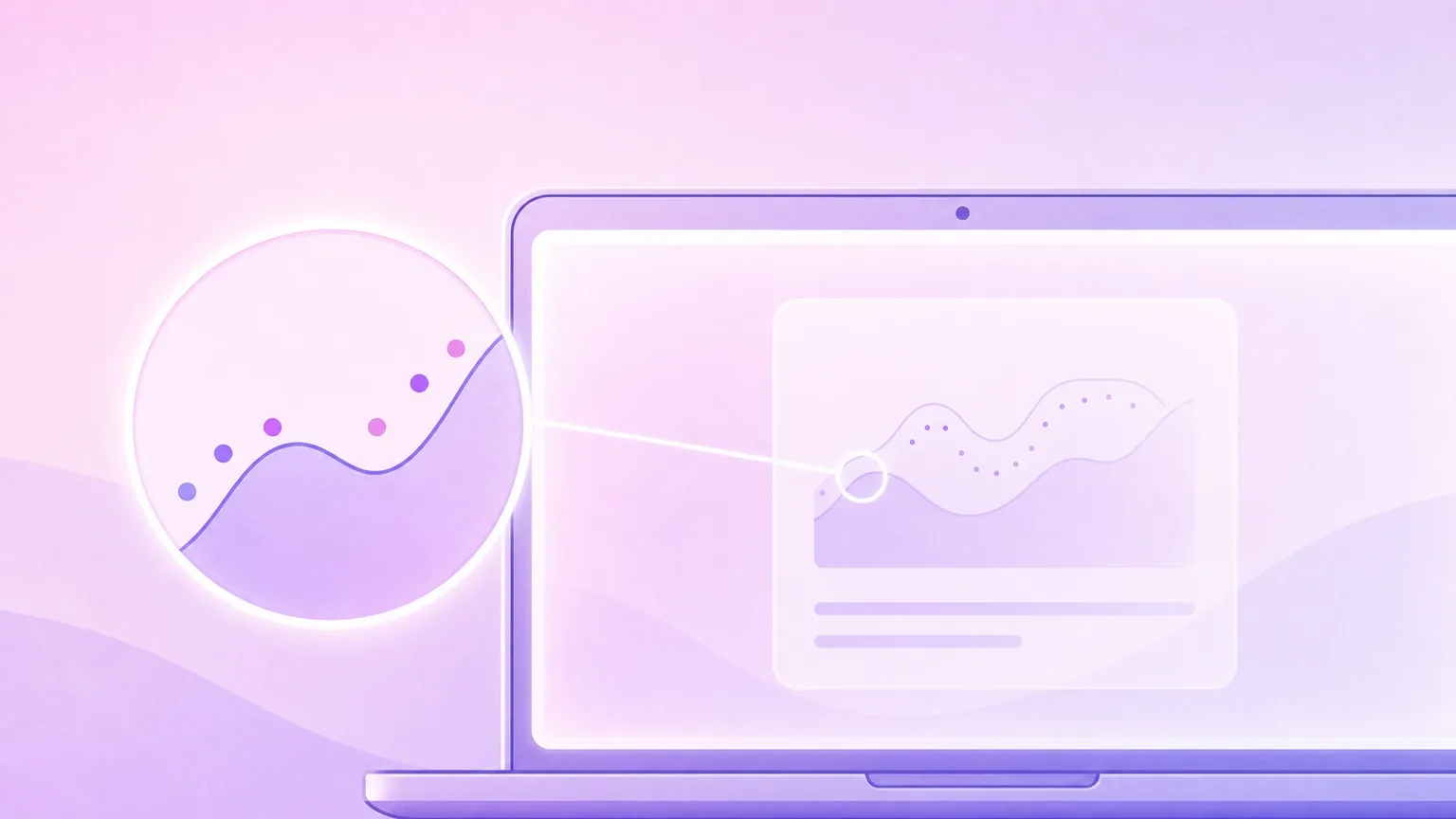
Presentify includes a Zoom feature that makes small details easier to see during presentations, screen shares, tutorials, live demos, and recordings. It magnifies the area around your cursor, so viewers can read tiny text, follow precise UI steps, and understand details that would otherwise be too small on a shared screen.
This is different from using Zoom, the video meeting app. Presentify's Zoom is a visual magnifier for your Mac screen. It helps your audience see what you are pointing at without asking them to squint, move closer, or guess which detail matters.
What Zoom does
Zoom magnifies the area where your cursor is pointing. As you move the cursor, the zoom view follows, making it useful for code editors, app settings, browser interfaces, spreadsheets, dashboards, design files, and slides with fine details.
It is especially helpful when you are presenting to people on smaller laptop screens or when your recording will be watched later on different devices. Instead of increasing every font size before a demo, you can zoom into the exact detail when it matters.
Zoom needs macOS Screen Recording permission so Presentify can capture and magnify the area around your cursor. If Zoom does not start, open macOS System Settings and make sure Screen Recording is enabled for Presentify.
Start Zoom with a shortcut
The fastest way to start Zoom is with the default global shortcut: ⌃ + Z (Control + Z). Press it once to turn Zoom on, move your cursor to the detail you want to magnify, then press it again to turn Zoom off.
Toggle Zoom from anywhere on your Mac with ⌃ + Z.
This shortcut is useful during live presentations because you can magnify a detail without opening another window, changing apps, or interrupting your explanation.
Start Zoom from the menu bar
You can also start Zoom by clicking the Presentify menu bar icon. This is useful if you prefer using your mouse, or if you would rather not memorize another keyboard shortcut.
Open the Presentify menu bar item and start Zoom without memorizing a shortcut.
Presentify is a menu bar app, so it stays out of the way until you need it. Once Zoom is running, you can keep working in Keynote, PowerPoint, Safari, VS Code, Figma, Zoom, Google Meet, Microsoft Teams, OBS, or any other app.
Adjust the zoom size and level
Different moments need different magnification. Use a smaller zoom area for precise controls, menu items, icons, or individual words. Use a larger zoom area when you want people to read a paragraph, inspect a chart, follow a code block, or see a larger part of an interface.
The default size shortcuts are:
⌃ + -to decrease the Zoom size⌃ + =to increase the Zoom size
Zoom also has separate shortcuts for magnification level:
⌃ + ,to decrease the Zoom level⌃ + .to increase the Zoom level
You can change these key shortcuts from Settings... > Shortcuts > Cursor Shortcuts.
Use full screen Zoom
Sometimes a small floating zoom view is not enough. If the entire screen needs to be easier to read, use full screen Zoom so the magnified view fills the display while still following your cursor.
Switch to full screen Zoom when the whole screen needs to be easier to read.
The default shortcut to toggle full screen Zoom is ⌃ + /. It is handy for detail-heavy slides, dense dashboards, long code walkthroughs, small terminal output, and remote support calls where the other person needs a clearer view.
Customize Zoom settings
Open Settings... > Cursor > Zoom to tune how Zoom looks and behaves. From there, you can adjust the zoom size, zoom level, shape, border, and other visual details so the magnified area fits your screen, content, and audience.
Tune Zoom settings so small details are clear without covering too much of the screen.
The goal is not to make every screen permanently larger. The best Zoom setup is the one that makes the next detail easy to read, then gets out of the way when the audience no longer needs it.
Customize Zoom shortcuts
Presentify lets you adapt Zoom to your workflow. Open Settings... > Shortcuts to change the Zoom shortcut if ⌃ + Z conflicts with another app or if you want to map it to a Stream Deck, presenter remote, macro pad, or keyboard shortcut you already use.
Customize Zoom shortcuts so magnifying details feels natural while presenting.
You can also change other cursor key shortcuts from Settings... > Shortcuts > Cursor Shortcuts. And if, for any reason, you do not want to set a keyboard shortcut for an action, just click the cross icon next to the shortcut.
Why Zoom improves presentations
Zoom makes presentations easier to follow because it removes the biggest problem with detail-heavy screen sharing: important information is often too small for the audience to read.
It helps you:
- Make small text readable during meetings, tutorials, and recordings
- Explain dense settings panels without changing your display resolution
- Walk through code, terminal output, diffs, and error messages more clearly
- Show spreadsheet cells, dashboard values, and chart labels without losing context
- Keep your presentation moving while the magnified area follows your cursor
Useful Zoom workflows
Use Zoom when you are teaching from a slide deck, presenting a product demo, reviewing code, walking through analytics, explaining a design, onboarding a teammate, or helping someone troubleshoot remotely.
A few practical examples:
- In a product demo, zoom into a small setting before you change it.
- In a coding tutorial, zoom into the line, error message, or terminal command you are discussing.
- In a design review, zoom into spacing, text, icons, or interaction states.
- In a data walkthrough, zoom into the value, cell, or label that supports your point.
- In a support call, zoom into the exact button or menu path the other person should follow.
Best practices
Use Zoom only when a detail needs extra clarity. Turn it on for the small part of the screen that matters, then turn it off when the full layout, slide, or app context should be visible again.
Keep the zoom size large enough for viewers on smaller screens, especially if they are watching a recording later. If the magnified area covers too much content, reduce the size or use a lower zoom level.
For longer walkthroughs, pair Zoom with Presentify's Spotlight, cursor highlight, or annotation tools. Zoom helps people read tiny details, Spotlight helps them know where to look, and annotations help you mark up the screen when a point needs to remain visible.
Quick checklist
- Enable Screen Recording permission for Presentify if Zoom does not start.
- Press
⌃ + Zto toggle Zoom. - Use
⌃ + -and⌃ + =to adjust the Zoom size. - Use
⌃ + ,and⌃ + .to adjust the Zoom level (magnification). - Press
⌃ + /when you need full screen Zoom. - Tune shortcuts in Settings... > Shortcuts.
- Tune size, level, shape, and border in Settings... > Cursor > Zoom.
Zoom is a small feature that makes a big difference: it helps your audience read the details, follow your cursor, and stay with you through every demo, lesson, meeting, or recording.